Arguably the most important tool for debugging calls on an Asterisk based system is the Asterisk full log. Anyone administering a system needs to know where it is and how to search it. This week’s #FridayFun is a tutorial on how to isolate the full log entries for a single call as the first step in debugging an issue, and we’ll do so in a newbie friendly way.
The Basics
On a new fpbx install, Asterisk will be configured to log most events and that log file is:
/var/log/asterisk/full
By default logrotate is configured to rotate the logs daily, and purge after 1 week, so looking for the full log on a normal system will show something like this:
root@FreePBX17:~# ll /var/log/asterisk/full*
-rw-r----- 1 asterisk asterisk    6089 Jul 25 09:17 /var/log/asterisk/full
-rw-r----- 1 asterisk asterisk 1859526 Jul 19 00:00 /var/log/asterisk/full-20250719
-rw-r----- 1 asterisk asterisk  312181 Jul 20 00:00 /var/log/asterisk/full-20250720
-rw-r----- 1 asterisk asterisk   37563 Jul 21 00:00 /var/log/asterisk/full-20250721
-rw-r----- 1 asterisk asterisk  233359 Jul 22 00:00 /var/log/asterisk/full-20250722
-rw-r----- 1 asterisk asterisk  162670 Jul 23 00:00 /var/log/asterisk/full-20250723
-rw-r----- 1 asterisk asterisk  400911 Jul 24 00:00 /var/log/asterisk/full-20250724
-rw-r----- 1 asterisk asterisk   30976 Jul 25 00:00 /var/log/asterisk/full-20250725
The above shows the current day’s events being logged to the file full and previous days events are logged in separate files with the date appended. Taking one of the rotated logs as an example:
-rw-r----- 1 asterisk asterisk 37563 Jul 21 00:00 /var/log/asterisk/full-20250721
This file is timestamped at midnight on July 21, and the 20250721 is appended to the file name. This file is the full log at the end of the day on July 20. If you’re trying to find events for July 20, you need to check the full log dated for July 21.
The Fine Print
In fpbx, if you browse to settings, Asterisk Logfile Settings, you can select what types of events get logged. This is what the defaults look like on a new TangoPBX
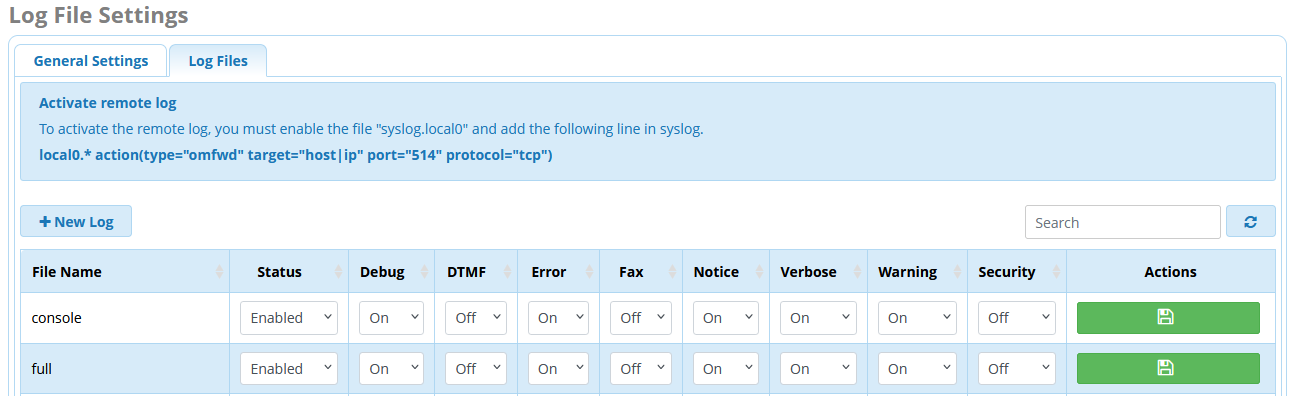
The defaults have most of what most people need, but I would point out two items here that are disabled by default that might be useful for some. The first is DTMF. By default DTMF is not logged or displayed on the console, and if you’re trying to debug IVR navigation or similar, that might be useful. The second is Fax. If you’re one of the unfortunate many that must endure this scourge on your systems, enabling fax logging might go a short way toward mitigating your misery. Set either or both to on for the console and for the log, then click the green buttons on the right to save your settings.
The Actual Log
I’m old school when it comes to looking thru logs. I’m mostly comfortable using the Linux prompt and greps to locate what I’m looking for, but it’s not for everyone. Particularly those who don’t do this type of thing daily. So lets delve into the System log files module. Browse to Reports → System Logfiles and this is what you’ll see

A few years ago, this module got a major overhaul. Using the dropdown menu in the upper left, you can select one of any of the logs on the system and thanks to The Basics above we know why there are several full logs available with dates appended
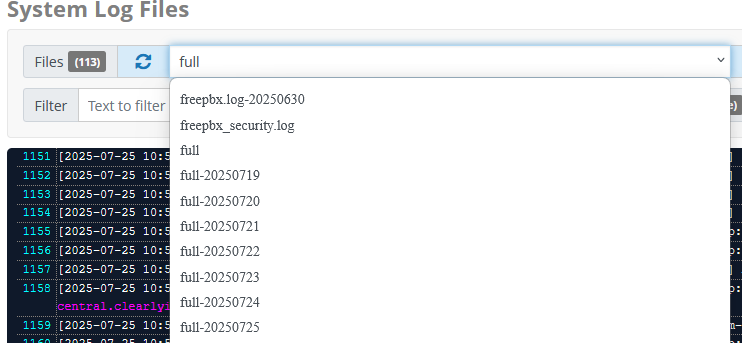
There’s also a search filter also on the upper left, and various controls for freezing the display, increasing the number of lines displayed, etc.
The Call Trace
As stated above, we want to isolate the log lines for one specific call, the call trace. I do that by starting in the CDR. I locate the call in question using the search tools in the CDR then I find the UniqueID of the call, this field in the system column:

I copy that string and then browse over to the System Logfiles module and paste the UniqueID for the call into the search filter. Provided I’m searching in the correct log file (select one of the previous days if necessary) I should see only a couple of lines displayed:

What I want now, is to copy the string in the third set of square brackets, and search for that string in the same log file. In this example the search string becomes C-0000008a:

What remains in the screen below is all the log lines for the specific call you’re looking for. You can now copy that content to do whatever you want with. If you’re asking for assistance, you can paste it in a text file and attach it to a ticket. If you’re looking for help here in the forum, you can copy/paste it to a text sharing service such as pastebin or between code tags in a forum post with your question.
Happy weekend all!